Intalling R and RStudio - Ubuntu
In this second post in the series Installing R and RStudio, I will describe the installation of R and RStudio on Ubuntu Linux.
I will be installing the latest version of R (currently 4.0) and RStudio (1.2.5042) on a virtual machine with a clean and up-to-date version of Ubuntu Desktop (20.04).
For a short introduction to R and also RStudio, please check the previous post.
Installing R
The installation process on Ubuntu involves more typing, but this is typical for a Linux OS. It’s still simple, unless you are not confident of working with the command line on Linux. You can find a good and lengthy installation steps at the R Project page.
Before installing any software on Ubuntu, it is recommended to update the packages. You can read more about this recommendation here.
You need to open a terminal and type the command below.
sudo apt update
You should also upgrade all packages you have installed to newer versions using the command below.
sudo apt upgrade
You may be asked to confirm the installation of some packages. You can avoid this by using the switch -y and use this command instead:
sudo apt -y upgrade
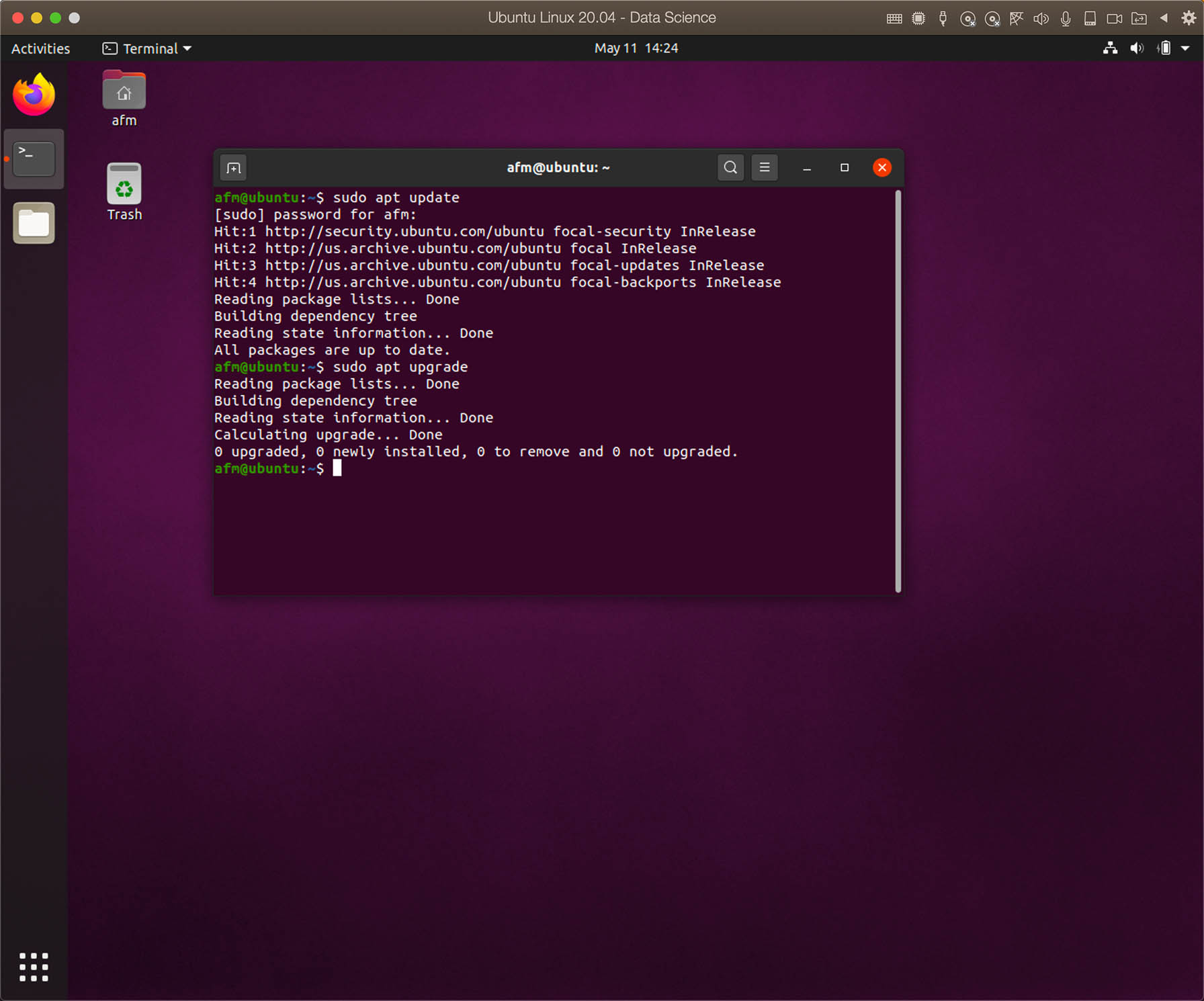
As R is a project with frequent updates, the latest stable version (currently 4.0) is not available in the Ubuntu repositories, so let’s start by adding the external repository maintained by CRAN.
But before adding the repository, you must add a key to your system, otherwise, you would receive the error:
E: The repository 'https://cloud.r-project.org/bin/linux/ubuntu focal-cran40/ InRelease' is not signed.
The Ubuntu archives on CRAN are signed with the key of “Michael Rutter marutter@gmail.com” with key ID 0x51716619e084dab9. To add the key to your system, use the command:
sudo apt-key adv --keyserver keyserver.ubuntu.com --recv-keys E298A3A825C0D65DFD57CBB651716619E084DAB9
Now use this command to add the repository:
sudo add-apt-repository 'deb https://cloud.r-project.org/bin/linux/ubuntu focal-cran40/'
Now you are ready to install R base package using the command:
sudo apt install r-base
You can confirm that R is installed by checking the version using the command:
R --version

You will probably install a few packages to use with R (e.g. dplyr, ggplot2, Shiny, etc.), and as soon as you attempt doing this, you will see something like:
> install.packages("dplyr")
Installing package into ‘/usr/local/lib/R/site-library’
(as ‘lib’ is unspecified)
Warning in install.packages("dplyr") :
  'lib = "/usr/local/lib/R/site-library"' is not writable
Would you like to use a personal library instead? (yes/No/cancel)
You can just write yes to create a personal library or you need to add your user to the staff user group. The latter is the recommended way, since by allowing you to write and install packages in the “site-library” folder, other users will be able to use these packages without having to install them (source: stackoverflow).
To add an user to the staff group, run the command below replacing “your_user_name” with your Ubuntu user name:
sudo usermod -a -G staff your_user_name
Or you can use the command below to add the current user to the staff group.
sudo usermod -a -G staff $(whoami)
Do not attempt to run R and install packages immediately after that, as the current user is still not yet considered a member of the staff group. You can restart your session or simply execute the command below to “log in again”.
su $(whoami)
Now you are ready to go.

As mentioned in previous post, the package xlsx requires Java, and you will also encounter an error if you try to install it. In fact, on macOS you can install, but not load. On Ubuntu, you won’t even be able to install without Java. If you try, you will see the error:
checking whether Java run-time works... ./configure: line 3736: /usr/lib/jvm/default-java/bin/java: No such file or directory
no
configure: error: Java interpreter '/usr/lib/jvm/default-java/bin/java' does not work
ERROR: configuration failed for package ‘rJava’
* removing ‘/usr/local/lib/R/site-library/rJava’
ERROR: dependency ‘rJava’ is not available for package ‘xlsxjars’
* removing ‘/usr/local/lib/R/site-library/xlsxjars’
ERROR: dependencies ‘rJava’, ‘xlsxjars’ are not available for package ‘xlsx’
* removing ‘/usr/local/lib/R/site-library/xlsx’

The downloaded source packages are in
	‘/tmp/RtmpYpocCj/downloaded_packages’
Warning messages:
1: In install.packages("xlsx") :
  installation of package ‘rJava’ had non-zero exit status
2: In install.packages("xlsx") :
  installation of package ‘xlsxjars’ had non-zero exit status
3: In install.packages("xlsx") :
  installation of package ‘xlsx’ had non-zero exit status
At the time of writing, Java 11 is the default Java development and runtime for Ubuntu 20.04. Run the following commands to install the OpenJDK 11 JDK package:
sudo apt update
sudo apt install openjdk-11-jdk
After installing Java, you need to check the version and adjust the R Java configuration javaconf. This step was not required on macOS.
First you need to check and confirm the version of java installed using the command:
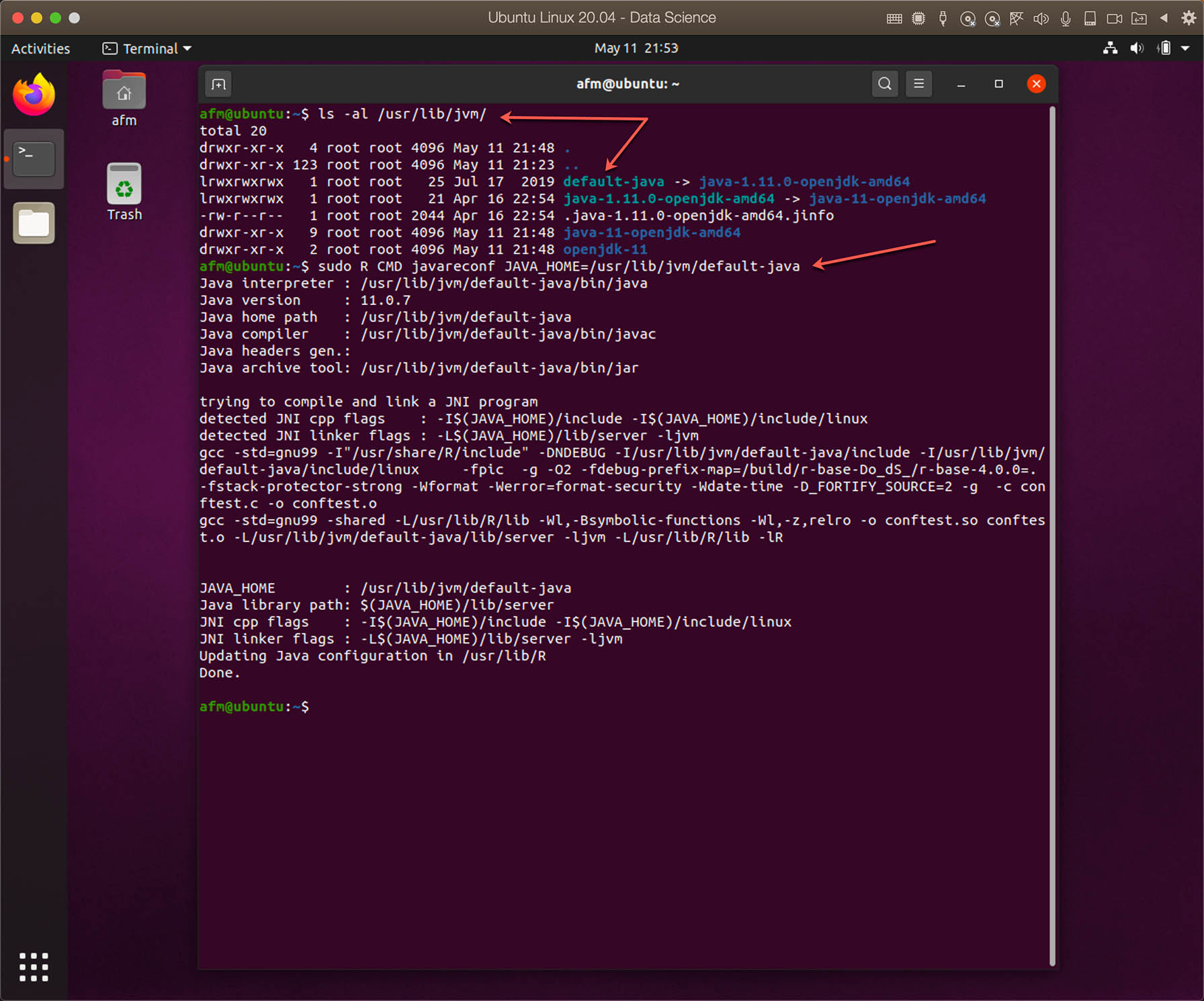
ls -al /usr/lib/jvm/
As you can see in the screenshot below, there is a link pointing default-java to the latest java installed, which in my case is java-11-openjdk-amd64. Therefore, you can use the command below to adjust the R javaconf file:
sudo R CMD javareconf JAVA_HOME=/usr/lib/jvm/default-java
After that, the installation of the package xlsx should work without errors.
RStudio
I already mentioned in my previous post that RStudio is the way to go to develop in R. This great IDE is also available for Linux.
The installation of RStudio is much simpler. Visit the RStudio Desktop (Open Source License) download website at https://RStudio.com/products/RStudio/download/#download.

Since the installation package for Ubuntu 20 is not avaialble yet, it is OK to download and install the version for Ubuntu 18/Debian 10.
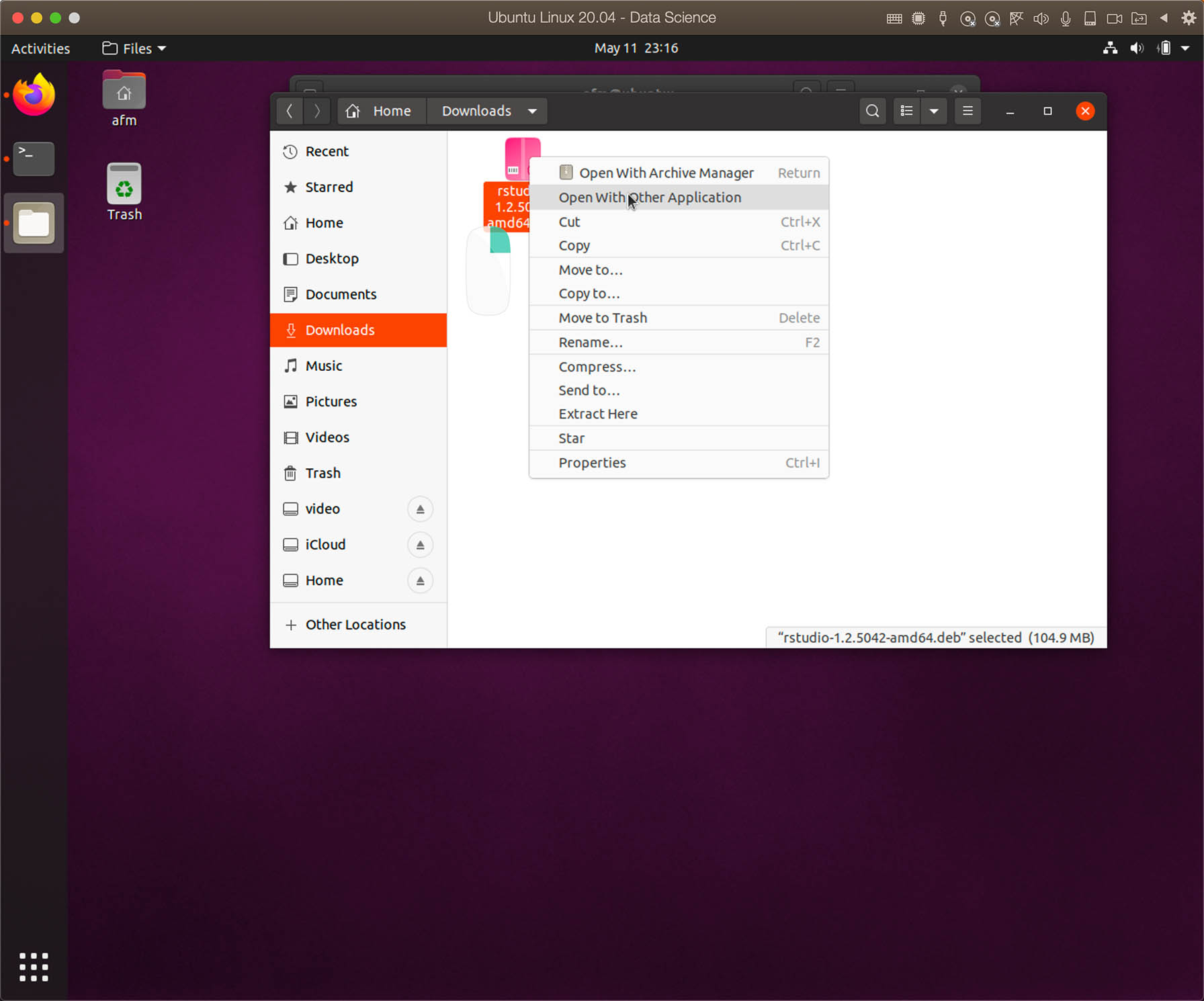
After downloading the installation file, you open the Ubuntu file manager Files and click on Downloads folder. Later you right click over the downloaded file and select the option Open With Other Application.
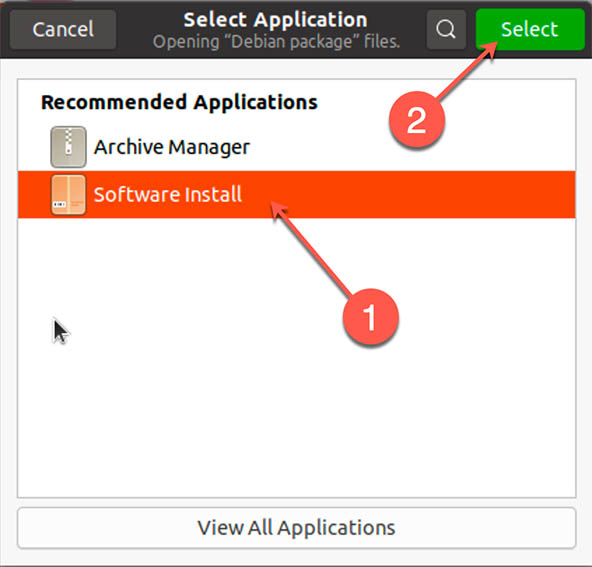
Select the option Software Install and later click on Select to open the software installer and just follow the basic installation process.
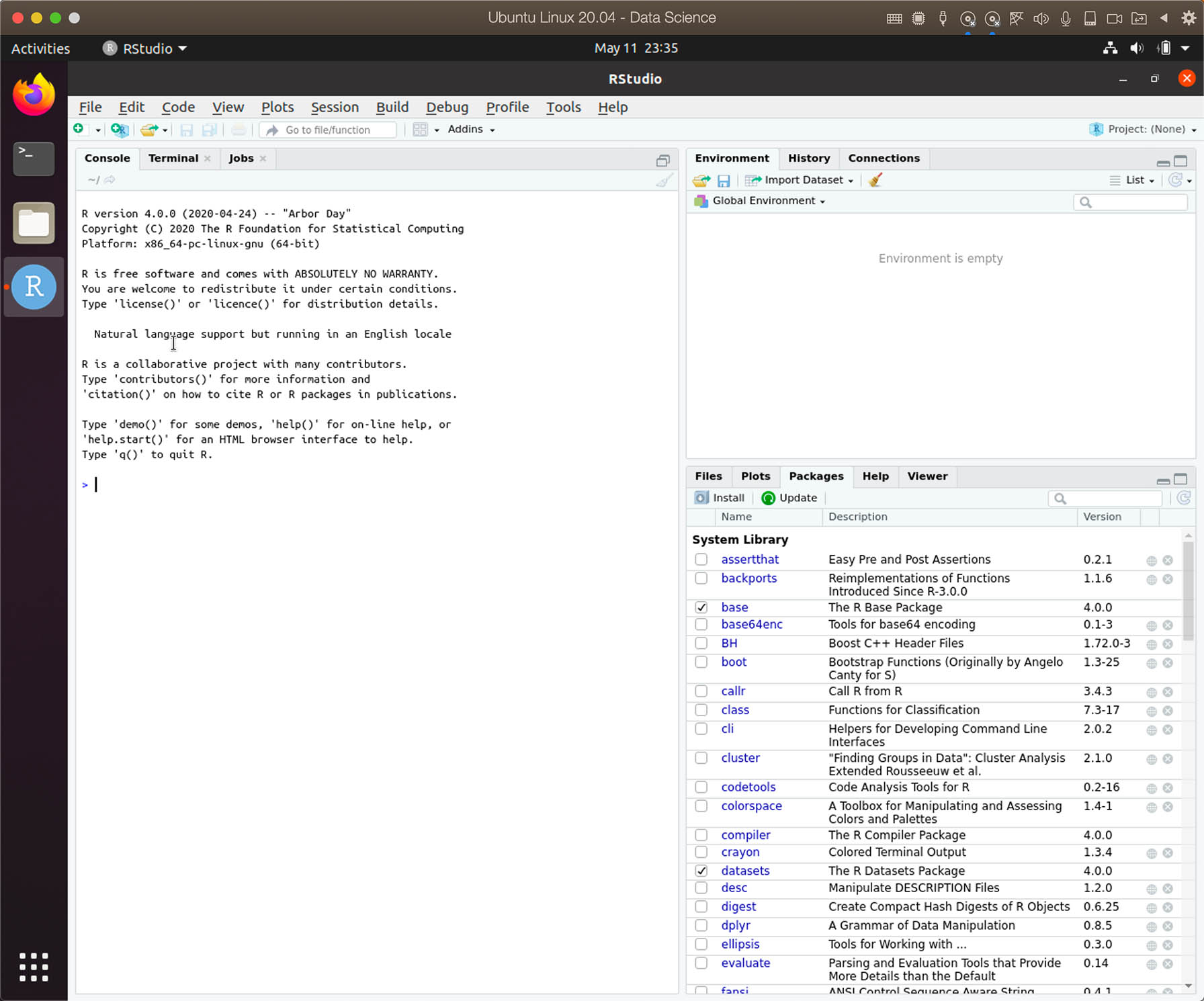
Voilà! RStudio is installed and ready to use.









Summary
The installation of R on Ubuntu appears to be more complex than on macOS, but if you are not new to Ubuntu, then you will find the process quite simple. I hope you found some useful information here. Please let me know if you have encountered problems or if you need additional help installing R or RStudio on Ubuntu Linux.