Creating a Simple Job Using Talend Open Studio

Today, I will explain how to create a simple job in Talend Open Studio to perform a task similar to the one shown in my previous post, which is exporting data from a database to a CSV file and send it in an e-mail. The main idea is to show how simple it is to use Talend Open Studio to create a simple job.
TOS (Talend Open Studio) is a type of application that is easier to explain in a video tutorial, rather than in a blog post due to drag and drop workflow. As I like detailed explanations, you will see a long list of steps and lots of screenshot animations, I just hope you don’t get lost. Once you get used to Talend, you will find it simple and you will be able to create simple jobs in minutes.
Introduction to Talend Open Studio
Talend is an open source data integration platform, that allows you ingest data from any source and helps you build data pipelines very fast. To simplify, it is a drag and drop ETL tool that is easy to learn and use. Talend provides various software and services for data integration, data preparation, data quality, Big Data and more.
In computing, extract, transform, load (ETL) is the general procedure of copying data from one or more sources into a destination system which represents the data differently from the source(s) or in a different context than the source(s).
Source: Wikipedia
Talend will create a Java code for your job without requiring you to write a single line of code. You don’t need to have Java knowledge to use it, but it helps especially when encountering errors. Talend is based on the Eclipse IDE and you can run on multiple operating systems (e.g. Windows, macOS and Linux). One of the downsides is the high memory consumption, but this is common in larger Java applications.
Here a comparisson between Talend Open Studio and the user-based paid subscription versions. Depending on your needs, Talend Open Studio can be sufficient.
Talend Open Studio Preparation
Below a list of useful links for you to get Talend Open Studio for Data Integration up and running:
- Prerequisites:
https://help.talend.com/reader/Msze~3~S7zxO1qT6vAXVyQ/z3L72n53ZYu0XDJBiWRKFw - Java SE Development Kit 11 (Recommended Java environment for version 7.3):
https://www.oracle.com/java/technologies/javase-jdk11-downloads.html - Talend Open Studio for Data Integration - Releases (download), release notes and user manuals:
https://www.talend.com/products/data-integration-manuals-release-notes/.
Since Talend IDE requires Java, you need to install Java first.
One of the first steps when opening Talend Open Studio is to ensure you have the Java settings right. On the menu, go to Windows > Preferences
- Under Java > Compiler, select the recommended version 11 for the compiler compliance level.
- Under Java > Installed JREs, ensure that you have the correct version installed and selected, also recommend the version 11.

Creating a Simple Job
As mentioned earlier, this tutorial will explain how to use Talend Open Studio to create a job to execute the following steps:
- Export data from a database
- Save the data to a CSV file
- Send the file in an E-mail
First, we have to create a job:
- Right click on Job Designs
- Click on Create Job
- Fill the name, purpose and description for the job (only name is required)
- Click on Finish

Because I will be extracting data from database, we need to create a Db Connection.
- Expand Metadata (Left hand side in Repository tab)
- Right click on Db Connections
- Click on Create connection
- Write a name for the connection
- Press next
- Select the DB Type and fill all relevant information about the connection
- Click on Test connection
- If you don’t have the required module installed, click on Download and install all modules available
- Confirm the successful connection
- Click on Finish

Now that we have a connection, we will create a query for our job.
- Right click at the created connections
- Click on Edit queries
- Add your query
- Click on run
- Check the result
- Click on OK
- Confirm with Yes to save your query
- Write a name for your query
- Click on Save
- Click on Yes to propagate the modification
- Click on Ok
- Expand Queries to see your new query

I was playing around with different queries in TOS and I missed to use the correct query before taking the screenshots. The simplified query should be:
SELECT CONVERT(DATE,p.payment_date) AS DT, sum(p.amount) AS AMOUNT
  FROM payment p
  WHERE p.payment_date >= '20050727'
        AND p.payment_date < '20050803'
  GROUP BY CONVERT(DATE,p.payment_date)
ORDER BY DT
Notes:
- I used a simple query for the old Sakila database. Ideally, when scheduling to run a job every day or once a week, you would use conditions like
WHERE mydatecolumn > DATEADD(DAY, -7, CONVERT(DATE, GETDATE()))and not a fixed date. - Talend removes all line breaks and therefore a line comment
--hides all of the following SQL code, including the code on all the following lines. You should use block comments/*comment*/instead. You may be able to run the query in SQL Builder using a line comment, but you could encounter an error when trying to run the job.
With our database connection and query ready, from now on it is mainly drag and drop. First, I will start with the export to a CSV file:
- Drag and drop the database connection to the design workspace
- Choose the component tDBConnection
- Click on OK
- Drag and drop the query to the design workspace
- Choose the component tDBInput to extract data (could also use tDBRow)
- Click on OK
- Right click at the connection component, select Trigger and the option On Component Ok (When connected, execute…)
- Select the query
- With the query selected, go to the component tab and mark the option to use a existing connection (tDBConnection_1 …)
- Click on Guess schema
- Adjust the data types
- Click on OK
- At the Palette, look for File > Output and select one of the options to export (e.g. tFileOutputDelimited)
- Drag and drop the tFileOutputDelimited component to the designer tab
- Right click on the query, select Row and the option Main
- Select the tFileOutputDelimited component
- Select the component tFileOutputDelimited to see the properties
- Adjust the properties accordingly (e.g. file name, field separator, include header, etc.)
- Click on Sync columns (To get the columns from the query)
- Click on "…" to check the schema for the output delimited file
- Click on OK
- On Advanced settings, adjust further properties (e.g. number separators, text enclousure, etc.)
- Click at the Run tab
- Click on Run to check if the job is running as expected
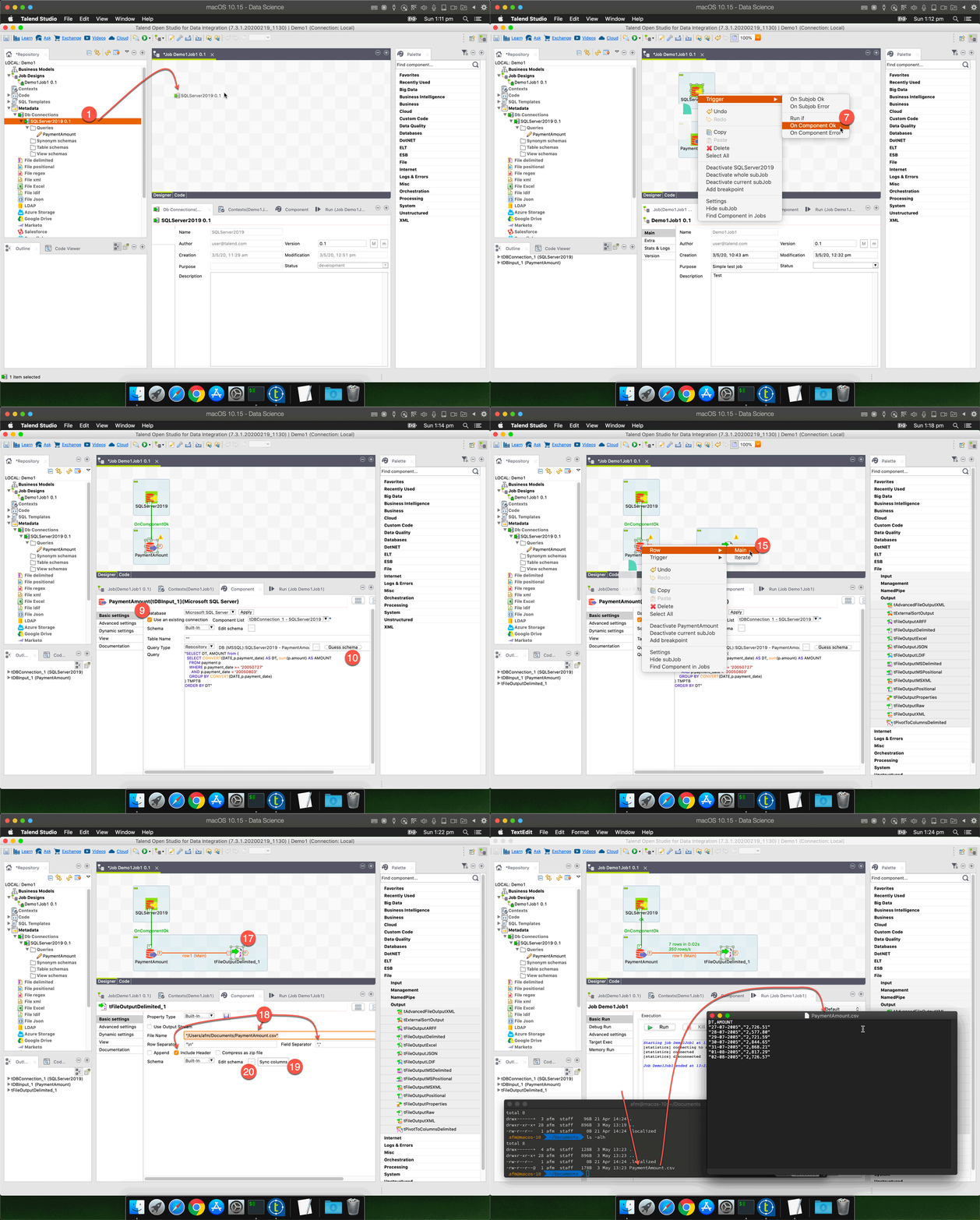
Note: It is important to understand the difference about the triggers OnSubjobOK and OnComponentOK. Check the short description at Talend Help website.
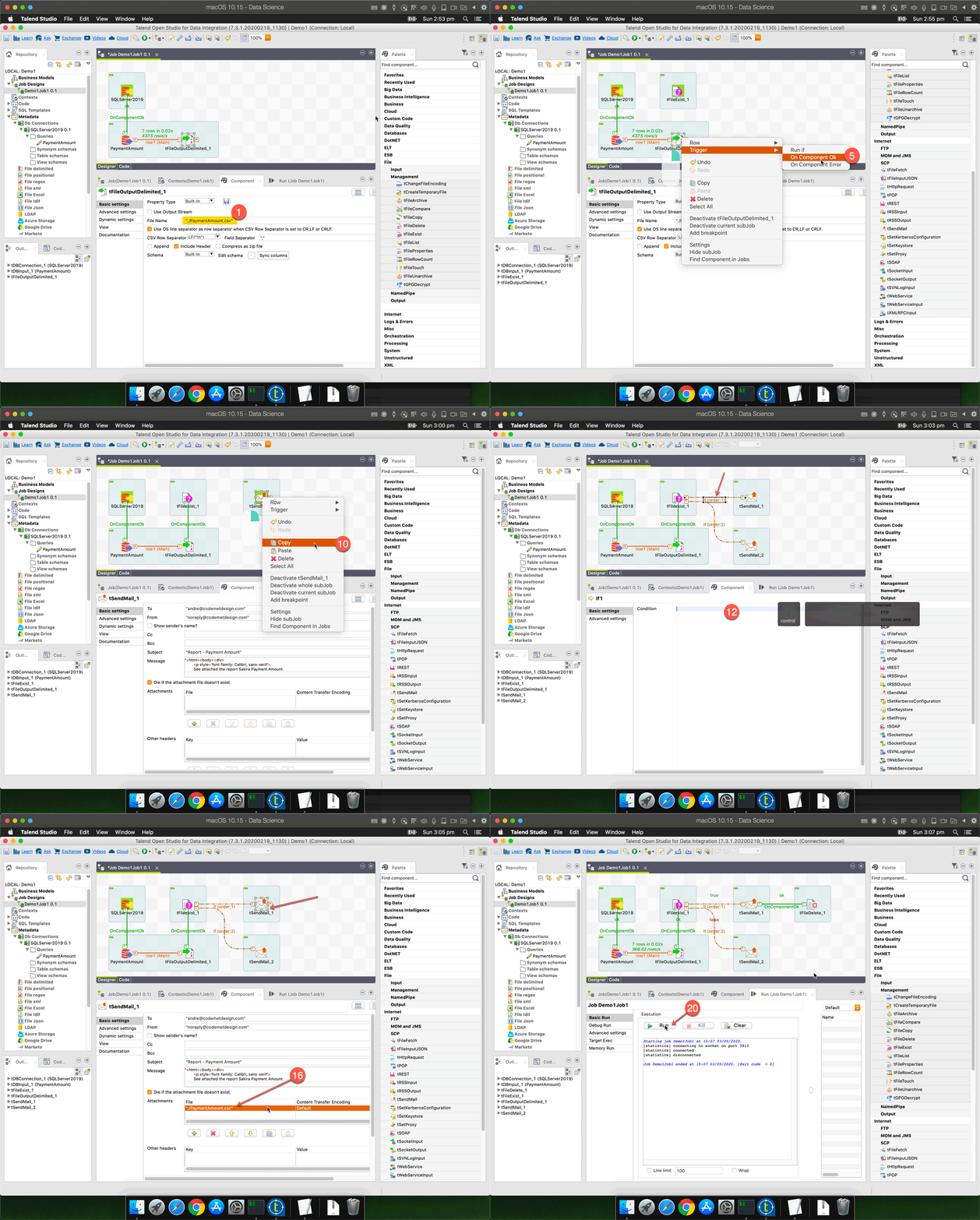
Instead to simply drop the tSendEmail component to send the email with the file attached, I decided to add the following steps:
- Check if the exported CSV file exists
- If the file exists, it will send an email with the file attached and then delete the file
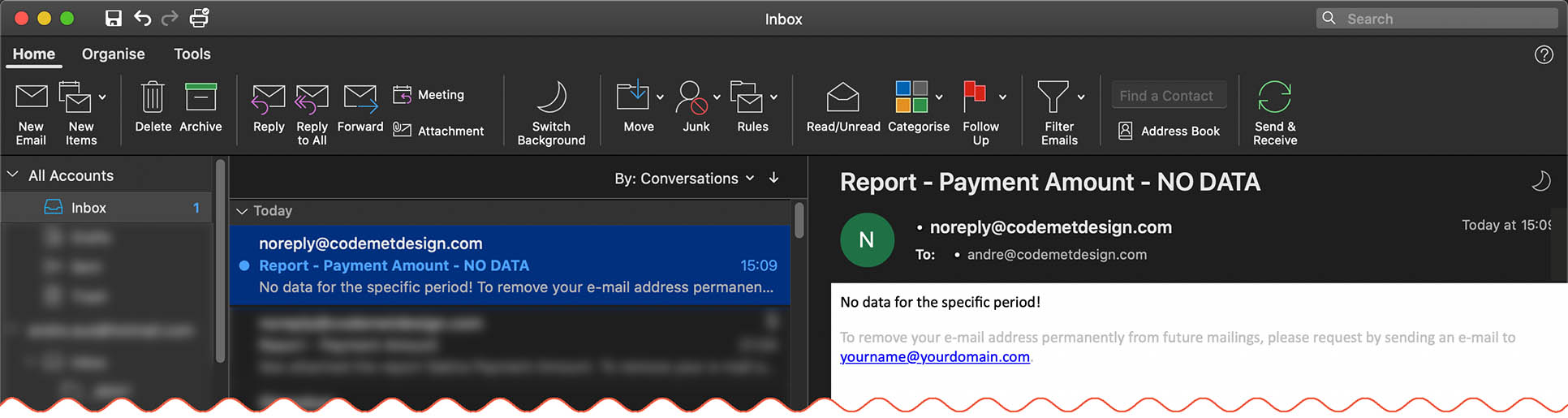
- If the file does not exist, it will send a different email stating “No data for the specific period!”
Now, let me add the components and show the small changes done:
- Change the File Name to export the file to current directory (So I can run this job on a different OS later)
- Check Don’t generate empty file (when no data at the query result)
- Drag and drop a tFileExist component
- Add the File name/Stream to check
- Right click at the tFileOutputDelimited and select the trigger On Component Ok and link to tFileExist
- Drag and drop a tSendMail component
- With the tSendMail component selected, add some properties (e.g. To, From, Subject and Message)
- Add SMTP host, uncheck Need authentication (in my case it is not required) and uncheck Die on error
- On Advanced settings, change the MIME type to HTML
- Right click at the tSendMail_1 component, Copy and Paste at the designer workspace
- Right click on tFileExists and select the trigger Run if (Do it twice, one for each tSendMail component)
- With the first If (order:1) selected, press CTRL + SPACE at Condition to access the variable list
- Select the option tFileExist_1.EXISTS
- Copy the content from Condition
- Select the other If (order:1) to the second tSendMail and paste at the Condition adding an exclamation mark (!) in front (to negate the boolean expression)
- With the tSendMail_1, add the attachment
- Drag and drop a tFileDelete component
- Add the File Name for the file to delete
- Right click on tSendMail_1 and add the trigger On Component Ok to tFileDelete
- Run. Notice the job flow
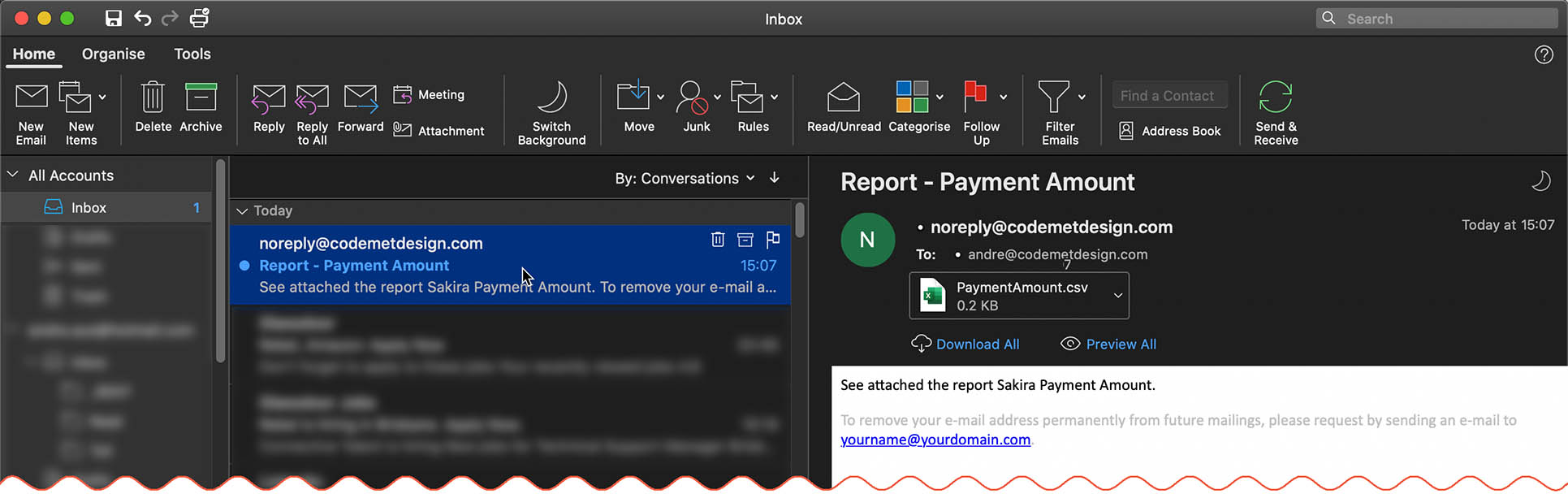
The result:
To see the result when no data is exported, I changed the query so that there is no data in the result. After running we see a different flow (as expected).

And the second email:
In case you are familiar with Java, you can look at the source code via the code tab. But note that it is not possible to edit the generated code directly, you can include your own Java code in a job using one of these methods:
- Use a tJava, tJavaRow, or tJavaFlex component.
- Create a routine by right-clicking Routines under Code in the Repository and then clicking Create routine.
Source: Talend Community

You can export, edit the code and compile without using Talend. However, if you open the job code in a Java editor and make changes, as soon as you run the job again through TOS, it will overwrite the changes done manually.
Building the Job
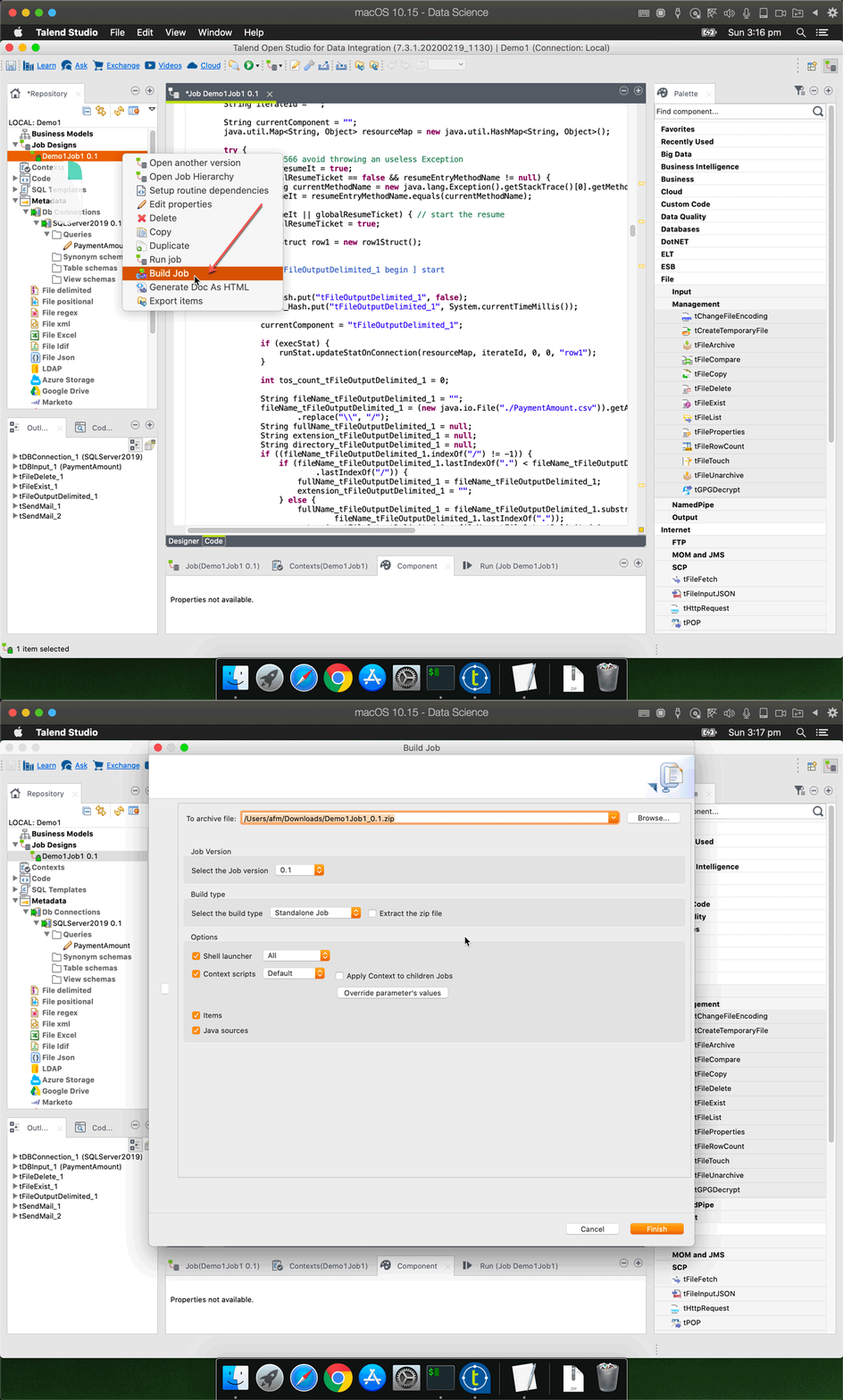
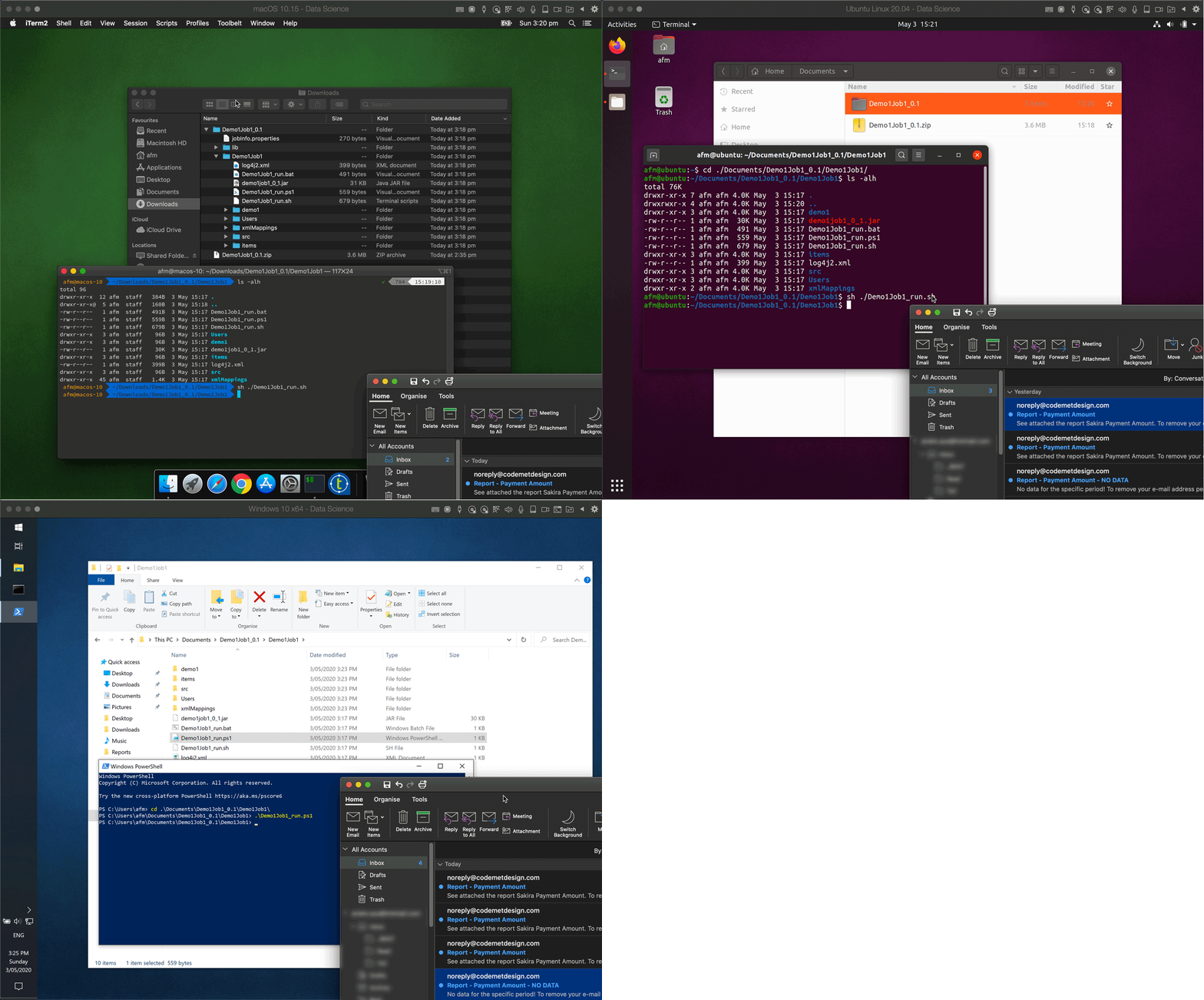
To build the job so that you can run it without the IDE, right click on the job you created, adjust any settings it the Build Job window (if necessary) and click Finish. Talend will create a zip file containing all the needed files to run the job. You just need to have Java installed.
Here is the same job running on macOS, Ubuntu and Windows:










Summary
I hope you enjoyed this simple explanation about Talend Open Studio. Keep in mind that I barely scratched the tip of the iceberg, Talend is very powerful. For example, you can debug jobs, add logs, execute external code, execute data manipulations, and so on.
I was introduced to Talend for the first time in 2012, but I regret that I have not used Talend more often in the past. I could have saved many hours if I hand’t taken the hard way of coding ETL tools from scratch.
In case you need an ETL tool and don’t want to get your hands dirty, don’t hesitate to contact me.